Describe what it looks like
Name colours, materials and parts. Vague moods get guessed.
Pick a pixel art character sprite you already have and tell the AI sprite editor what to change: new colors, new sprite poses, a different weapon, or one small detail. Get a transparent PNG of the same character, same size, same spot.
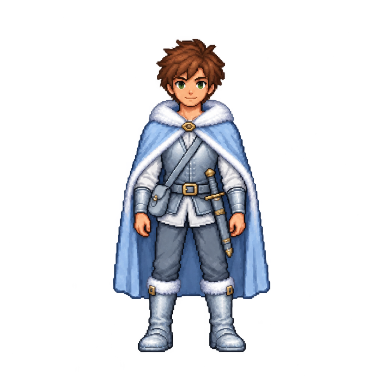
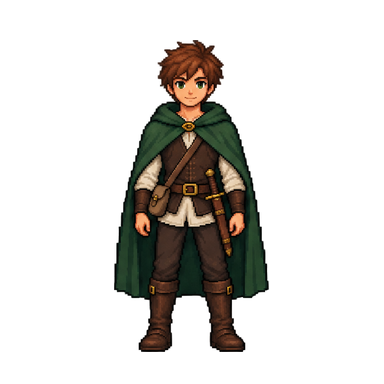
Drag the divider to compare
frost ranger version: icy blue cloak with white fur trim, pale steel armour, frosted boots
Name colours, materials and parts. Vague moods get guessed.
Want a new style and a new pose? Do one, then use Restyle again on the result.
One character, full body, plain or transparent background.
Remove Background →Four ways to edit
The AI sprite editor has four modes. Each changes one part of your sprite and leaves the rest alone, so every version still reads as the same character.
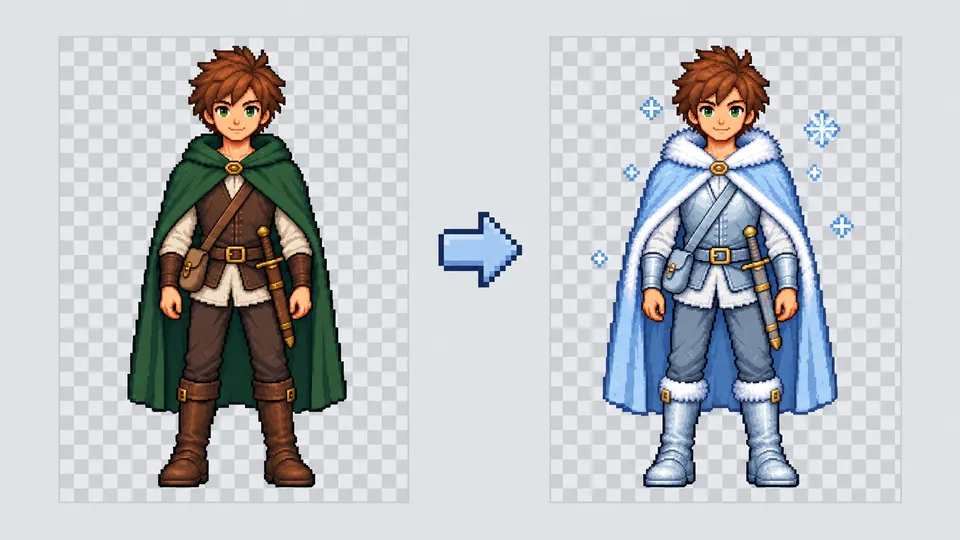
Want a frost ranger or an elite enemy sprite in red and gold? Choose Style and describe the look, like "icy blue cloak, white fur trim." The AI sprite editor repaints colors and materials for a quick reskin, keeping the pose and size.
Try Style Mode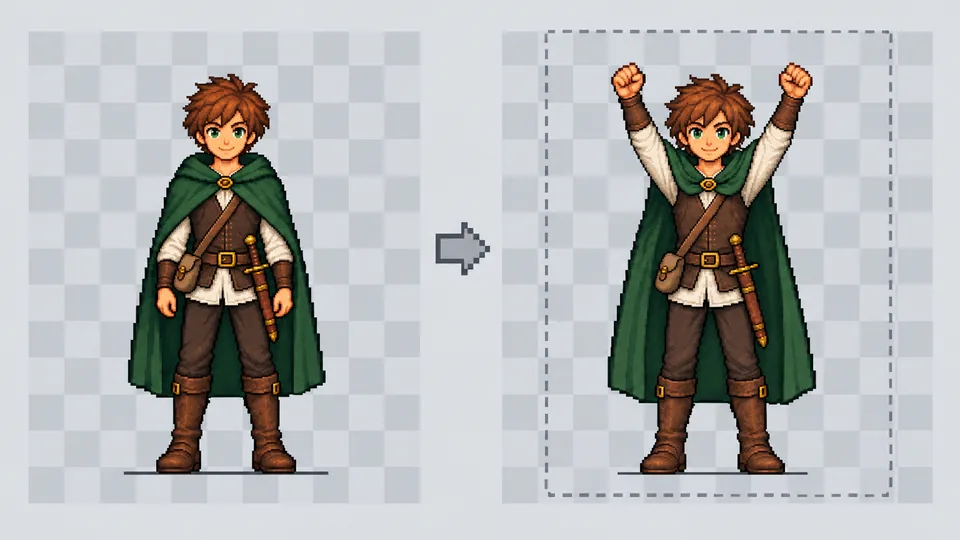
Does your idle hero need a victory cheer? Describe the stance and what the hands hold. The AI sprite editor moves only the body and limbs, keeps the canvas at your source size, and keeps the feet on the ground line.
Change a Pose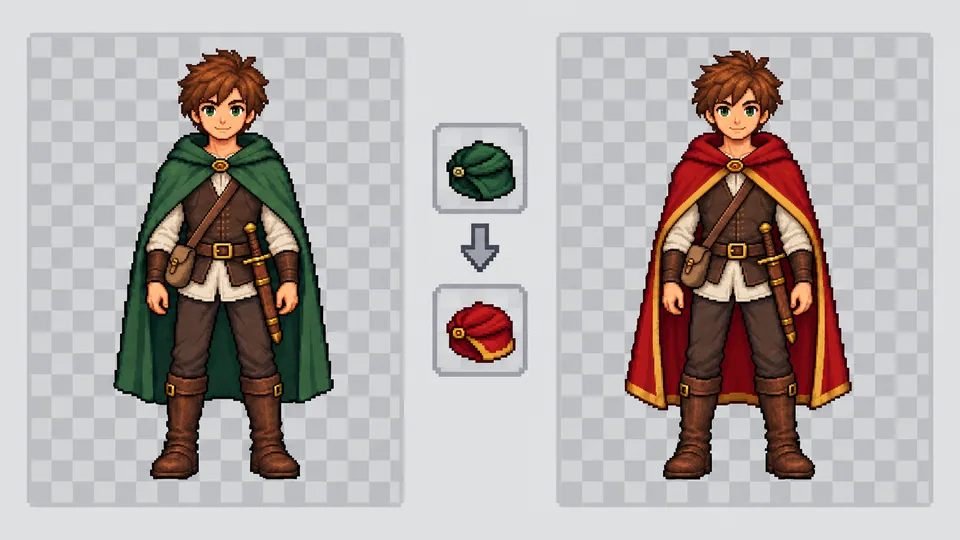
A new cloak or staff should not turn your hero into someone else. Item swap has two fields, swap out and swap in, and the AI sprite editor keeps the pose, grip, and outline style so the new gear fits.
Swap an Item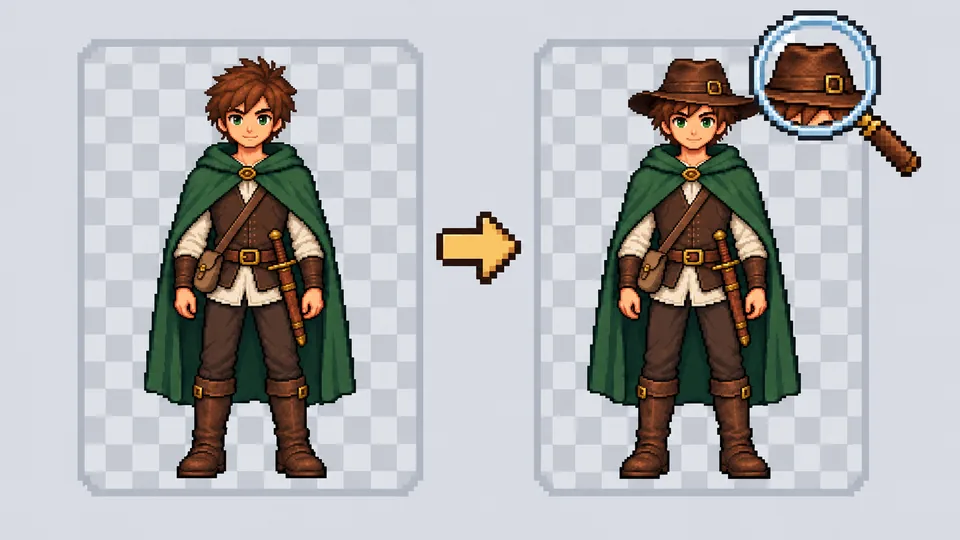
Add a hat, change the hair color, or give a guard a scar. Custom mode covers custom sprite changes the other modes miss. Describe the detail in plain words; the AI sprite editor leaves everything else untouched.
Make a Custom Edit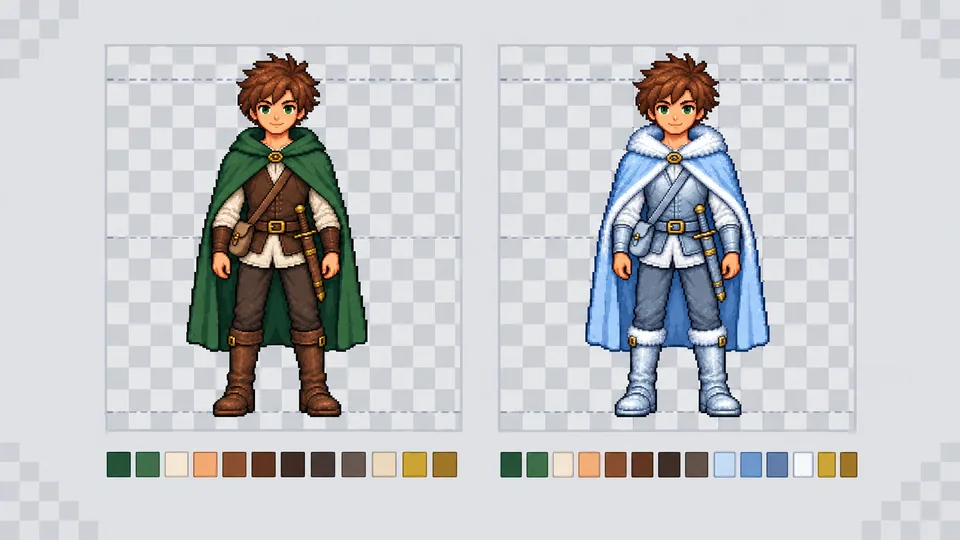
Every result is a transparent PNG at your source size, in every mode. The AI sprite editor aligns it with the original and keeps new colors near your sprite palette, so a pixel art sprite stays crisp on its pixel grid.
Restyle My SpriteThree-step workflow
Every sprite edit, from a quick recolor to a custom sprite detail, follows one short loop in the AI sprite editor.
Pick a sprite from My Sprites or upload a PNG, JPG, or WebP of 16 px or more per side. One full-body pixel art character sprite on a plain background works best.
Choose Style, Pose, Item swap, or Custom and write the change. Name colors, materials, and body parts: "icy blue cloak" beats "make it cooler." Pick one to four variations.
Results from the AI sprite editor appear one by one in your Creation Record, right in your browser. Download the PNG, refine pixels in the editor, or restyle again.
Use cases
Games always need more versions of a character. Here is where indie developers reach for the AI sprite editor instead of a blank canvas.
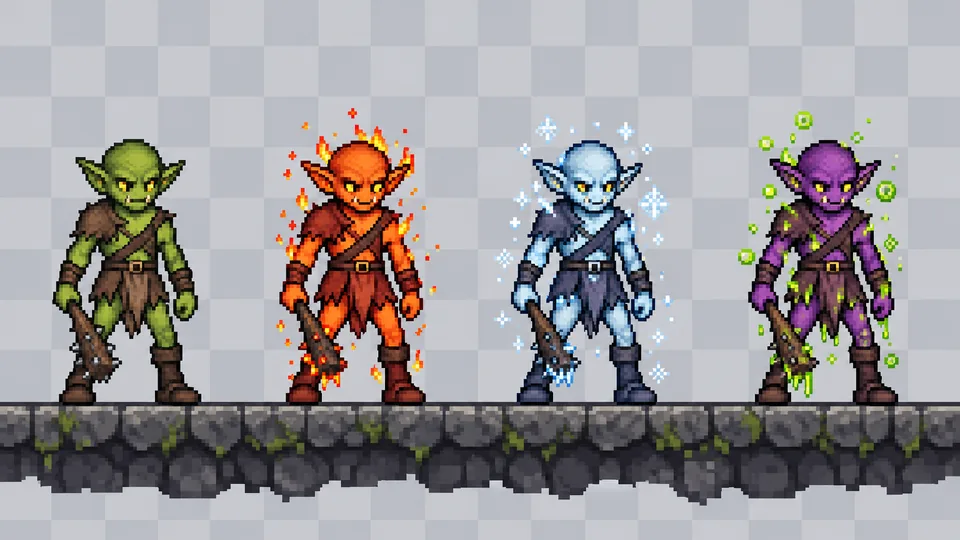
Recolor one goblin into fire, ice, and poison versions so players read the threat at a glance. It is the classic palette swap, extended to materials, and each enemy sprite keeps its size.
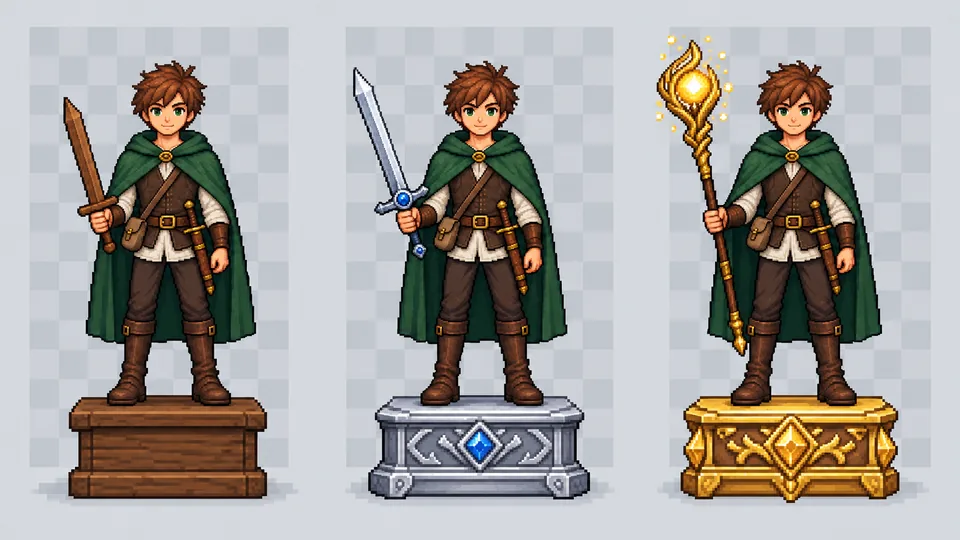
Show a better sword or a rare staff on the same game character sprite. Only the gear changes, so the upgrade feels earned, not like a new hero.
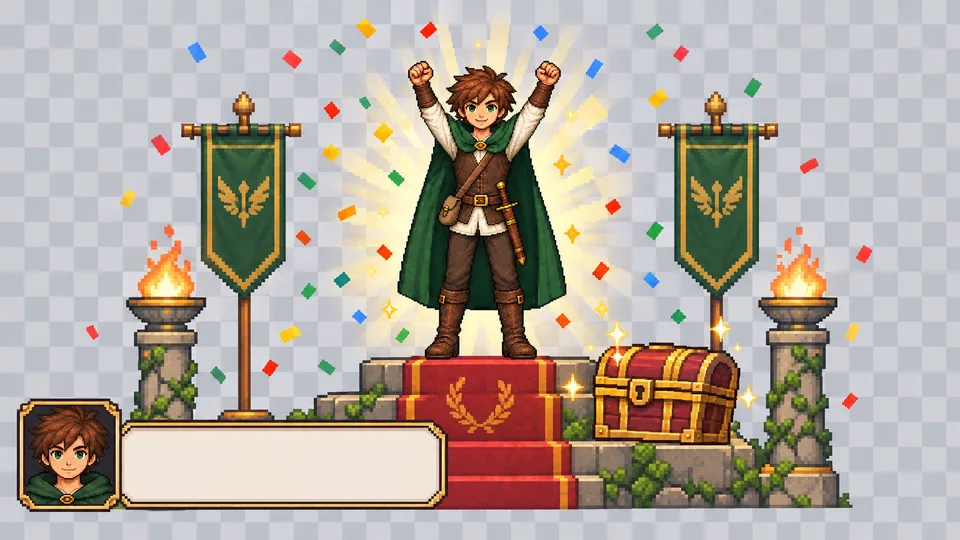
A victory cheer for the results screen, a casting stance for dialogue. Pose mode turns one idle hero into the sprite poses each scene needs.
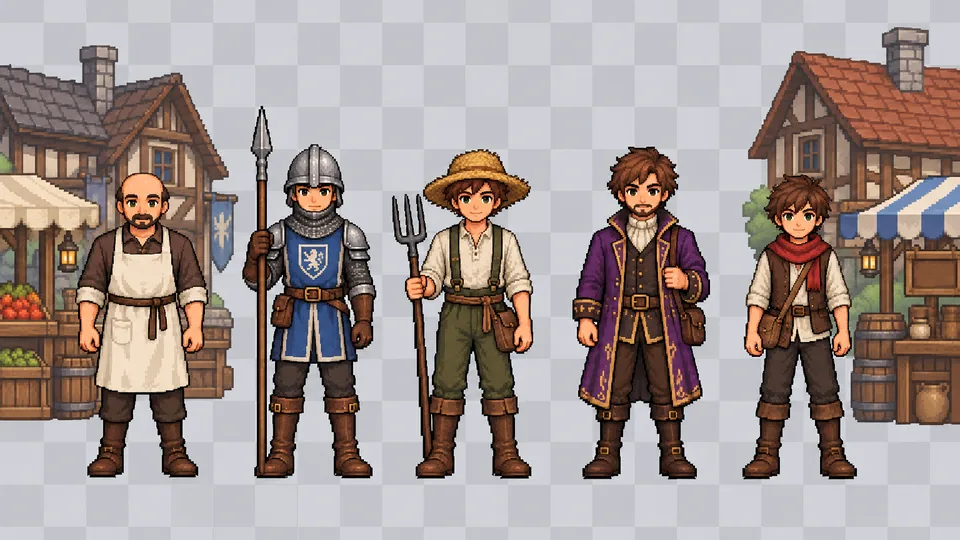
Fill a town from a few base designs. Change hats, hair, or outfit colors so each NPC sprite gets its own custom sprite look while the art style stays consistent across your game assets.
Why SpriteSheetMaker
A fresh generation rarely returns the same character. The AI sprite editor starts from your art and protects what already works.
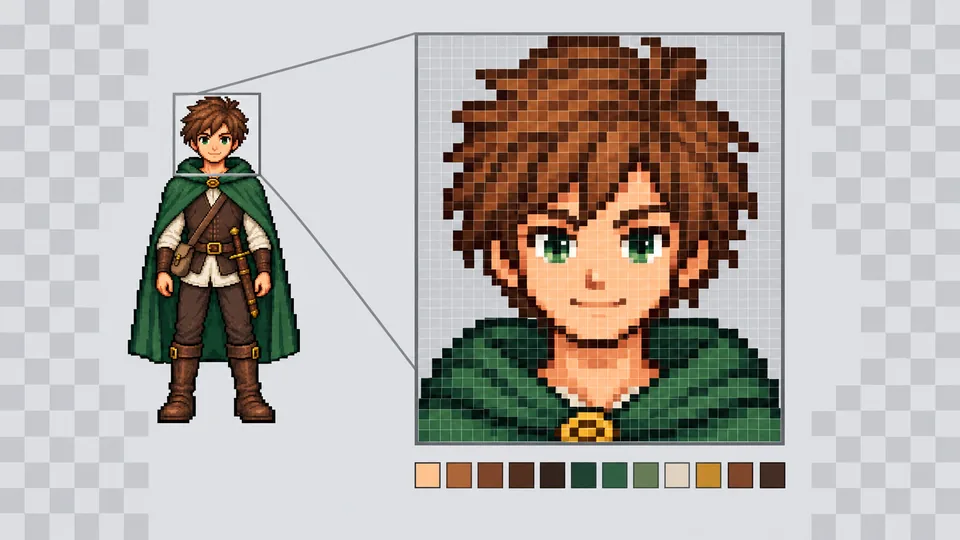
Upscaled pixel art exports are edited at their true size and scaled back, so every pixel sprite keeps hard edges. New colors stay near your palette, keeping each pixel art sprite consistent.
Restyle My Sprite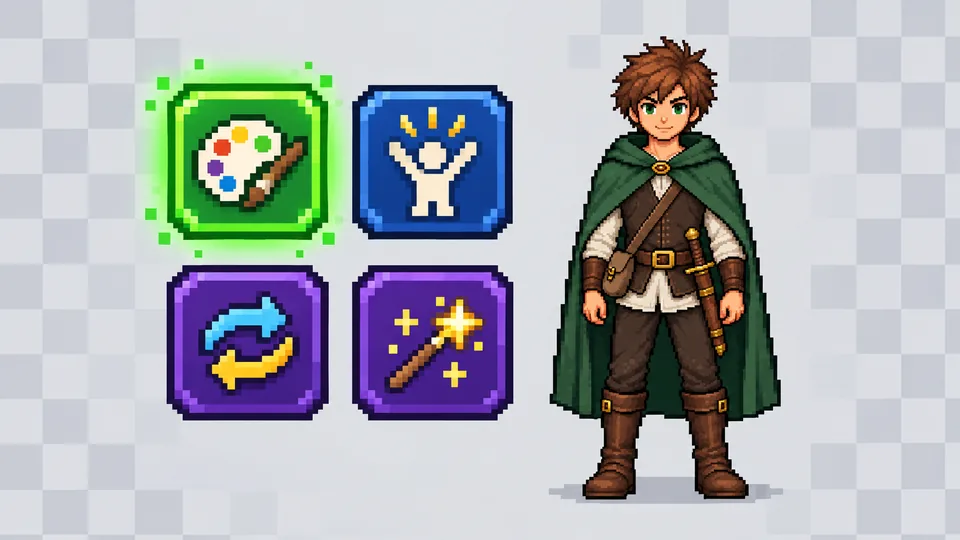
You pick the kind of change; the AI sprite editor sets the alignment and color limits, so your first result stays close to your request.
Pick a Mode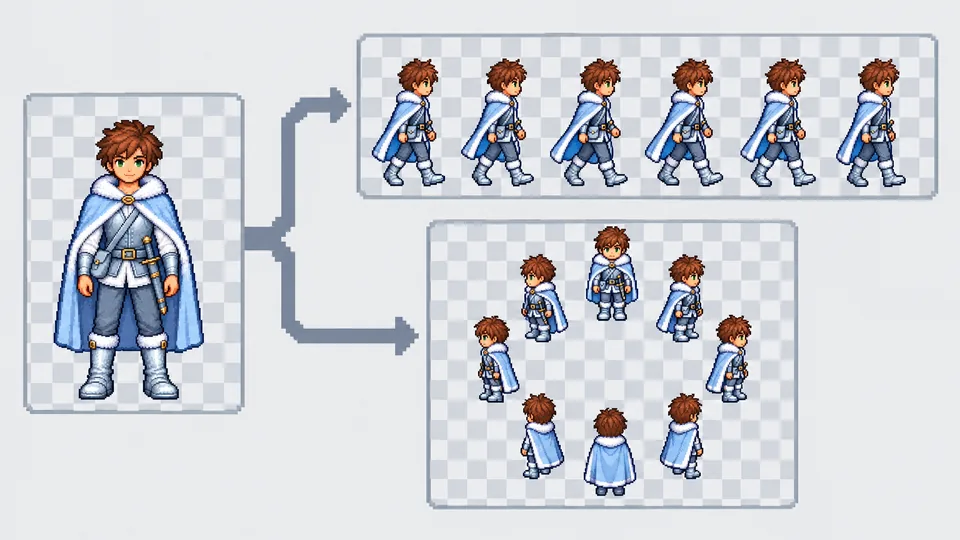
Every result from the AI sprite editor is saved to My Sprites, ready to animate, rotate into more directions, or fine-tune by hand, all from the same 2D sprite.
Animate a Result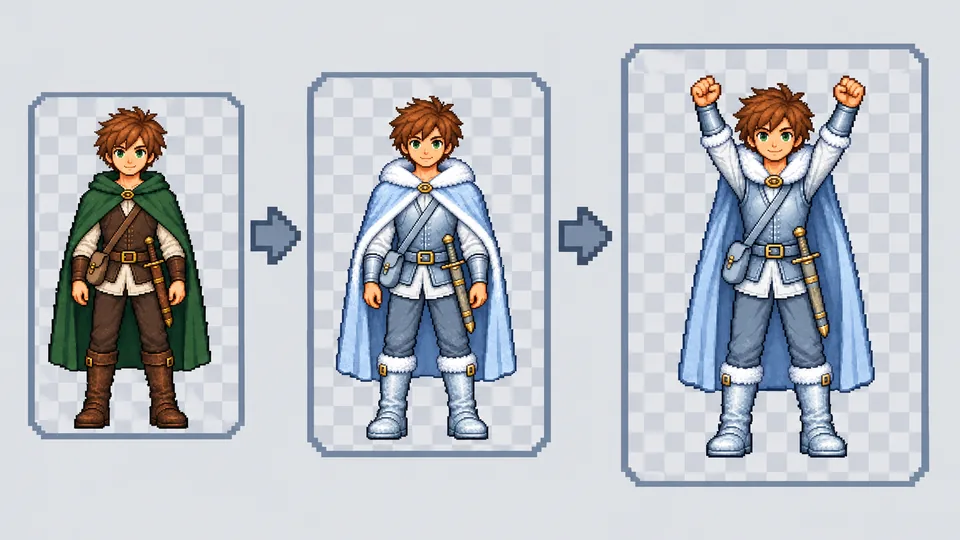
Big redesigns work best in small passes: make a frost version, then restyle it again to try new sprite poses. Each pass builds on the last, which is handy during a game jam.
Start RestylingCommon questions
Answers to common questions before your first edit.
Start editing
Choose a sprite, describe a style, pose, or custom sprite change, and get a transparent PNG of the same character. No sprite yet? Create one first.